Giving my Grok Bot assistant admin rights without switching off UAC
SSH to localhost would have given dr eggbot, one of my Grok Bot assistants, silent admin over everything. Instead it gets a fixed menu of five elevated scheduled tasks it can start but not change, and I tested that boundary from the account it actually runs as.
Case file
- Incident: Oct 24, 2026
- Symptom: dr eggbot, one of my Grok Bot assistants, runs PowerShell on my PC from a normal, non-elevated terminal. Every admin step came back to me as “paste this into an admin window.”
- Evidence: restore points,
HKLMregistry writes,bcdeditand SYSTEM scheduled tasks all need an elevated session. A Windows rebuild is mostly those. - Tempting fix: SSH to my own machine as an admin. On Windows, an SSH session for an admin account runs fully elevated with no UAC prompt, and the private key would sit in my profile, where anything running as me could use it.
- Fix: a fixed menu of five elevated scheduled tasks under
\WinSetup\. Each one runs a script from a folder only admins can change. My normal account can start the tasks but can’t edit them, and the runner refuses any action that isn’t on the list. - Prevention: adding or changing an action means rerunning the installer from an admin window. That one paste is my approval step.
- Lesson: give the assistant verbs, not a shell, and test the boundary from the account it actually runs as. Bonus lesson from the first real run: read the tool’s own log before you blame a hang on it.
The story
I was rebuilding my Windows 11 setup with dr eggbot. It runs PowerShell on my PC, but its terminal isn’t elevated, so every admin-only step turned into a command for me to copy into an admin window. After a few of those I asked the obvious question: can we set up an SSH key so you can run these yourself?
It could, but dr eggbot explained the catch before building anything. You turn on Windows’ built-in OpenSSH server, authorize a key, and the assistant runs ssh to localhost. Windows gives an admin account’s SSH session a fully elevated token with no UAC prompt. That part is the point. The problem is where the key lives: in my profile, so the assistant’s terminal can read it. That means anything running as me, whether a sketchy installer, a bad package or the assistant itself, could pick up that key and get admin without a prompt. It’s UAC switched off in all but name.
So I had three options: full SSH admin, a short list of admin jobs, or keep pasting. I asked whether the short-list version could handle something like Enable-ComputerRestore. It could, as long as that job was on the list. What it can’t do is run a brand-new admin command on the spot. Anything new means updating the protected copy of the scripts, and that takes one paste from me in an admin window. I decided that paste was a feature. It’s my approval step. I went with the short list.
Here’s what dr eggbot built:
- A folder,
C:\ProgramData\WinSetupAdmin, that only Administrators and SYSTEM can write to. Everyone else can read and run what’s in it. - A
runner.ps1in that folder that accepts exactly one of a fixed set of actions and refuses anything else: RestorePoint, Tweaks, Apps and SaveDumps at first, plus Check, which came later. - One scheduled task per action under
\WinSetup\. Each runs the runner elevated, as me, only while I’m signed in, and only when something starts it. No triggers, no schedule. - A permission on each task that lets my normal account start it and read it, but not change it.
- A log for every run, written inside the protected folder, that dr eggbot can read afterward.
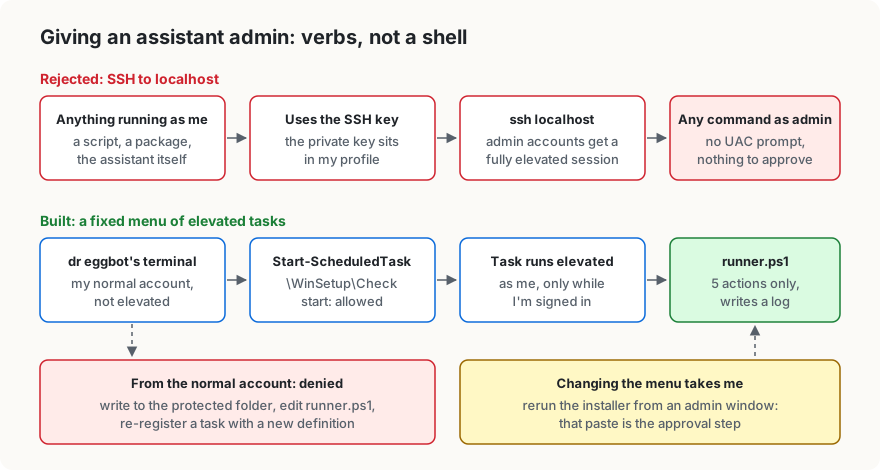
I pasted the installer once, from an admin window. Then dr eggbot started the RestorePoint task from its own non-elevated terminal, and it worked: a fresh restore point, exit 0.
A working menu only proves half of it, though. The other half is whether the normal account can quietly change what the menu does. So dr eggbot tried, from the same account it runs as. Writing a new file into the folder: blocked. Appending a line to runner.ps1: blocked. Re-registering a task with a changed definition: access denied. It can start the tasks. It can’t change what they do.
Coda: the hang that wasn’t winget
The first real job was applying my tweaks script through the Tweaks task. The registry changes landed, but the task sat at “Running” for more than five minutes with nothing in its log past the header. The script’s last step was winget configure --enable, so we blamed winget. A hidden task has no console, and winget probably wanted one. We moved that step into its own process with a time limit, reran it, and it came back clean in two seconds. Case closed, I thought.
It wasn’t. When dr eggbot finally read winget’s own log, winget hadn’t done anything on either attempt. I’d passed --enable together with --disable-interactivity, and winget rejects that combination: “Option ‘–enable’ and ‘–disable’ cannot be used with other arguments.” It quit within milliseconds, both times. On the first run, the thing actually hanging was PowerShell, still waiting on the inline | Out-Null pipe after winget had exited. Why that pipe stayed open is still unproven. The “clean” rerun was only clean because Start-Process doesn’t pipe output, and the feature I wanted was never turned on.
The real fix was the right flag (--enable on its own) plus running winget as its own process. On the next run winget’s log showed “Leaf command succeeded: root:configure,” and the task finished in about six seconds. The time limit is now five minutes, because --enable can download from the Store. It’s insurance, not the fix, and it has never fired.
That run turned up one more bug. The tweaks script has a check mode that reports drift, and when it ran without admin it called a SYSTEM-owned task “missing” because it couldn’t see it. Now it says “not checked (needs admin).”
Which raised a fair question: hadn’t I just given it admin? Sort of. It could apply settings through the menu, but it couldn’t read admin-only state back to confirm them. So we added a fifth action, Check. It’s read-only and runs the drift check elevated. I reran the installer (one more paste, one more approval), dr eggbot started Check itself, and it came back “All settings match.” with exit 0. It verified admin-only settings without getting any broader admin.
Do it yourself
This assumes your everyday account is an administrator under UAC, which is the Windows default, and that you’re comfortable reading PowerShell. The scripts are trimmed versions of mine. Keep your working copies in a folder such as %USERPROFILE%\WinSetup. The installer copies them into the protected folder; that copy is the only one the tasks ever run.
1. Decide on the menu. Write down the admin jobs you actually want the assistant to run, as verbs. Mine are RestorePoint, Tweaks (my settings script), Apps (install from a list), SaveDumps (the crash-dump copy from my boot loop post) and Check (a read-only drift report). Anything that takes free-form input, like “run this command” or “install this package name,” doesn’t belong on the list. That’s a shell with extra steps.
2. Write the runner (runner.ps1). It accepts one action from a fixed list and logs everything.
param([Parameter(Mandatory)][ValidateSet('RestorePoint','Tweaks','Apps','SaveDumps','Check')][string]$Action)
# The task starts a fresh -NoProfile process, so nothing upstream sets this. Without it, a failed registry write
# is a non-terminating error, the catch below never sees it, and the log still says exit 0.
$ErrorActionPreference = 'Stop'
# Load modules only from system folders. The per-user module folder is writable by anything running as you.
$env:PSModulePath = "$env:ProgramFiles\WindowsPowerShell\Modules;$env:SystemRoot\System32\WindowsPowerShell\v1.0\Modules"
$root = $PSScriptRoot
$logs = Join-Path $root 'logs'; New-Item $logs -ItemType Directory -Force | Out-Null
Start-Transcript -Path (Join-Path $logs ('{0}-{1:yyyyMMdd-HHmmss}.log' -f $Action, (Get-Date))) | Out-Null
$code = 0
try {
  switch ($Action) {
    'RestorePoint' {
      Enable-ComputerRestore -Drive 'C:\'
      New-ItemProperty 'HKLM:\SOFTWARE\Microsoft\Windows NT\CurrentVersion\SystemRestore' -Name SystemRestorePointCreationFrequency -Value 0 -PropertyType DWord -Force | Out-Null
      Checkpoint-Computer -Description 'WinSetup: manual restore point' -RestorePointType MODIFY_SETTINGS
    }
    'Tweaks'    { & (Join-Path $root '01-tweaks.ps1') }
    'Apps'      { & (Join-Path $root '02-apps.ps1') }          # installs only what's in apps.json, which lives in this folder too
    'SaveDumps' { & (Join-Path $root 'save-dumps.ps1') }
    'Check'     { & (Join-Path $root '01-tweaks.ps1') -Check } # read-only drift report
  }
} catch { $code = 1; "ERROR: $($_.Exception.Message)" }
"RESULT: $Action exit $code"
Stop-Transcript | Out-Null
exit $code
$ErrorActionPreference = 'Stop' turns every error into one the catch sees, so a failed step can’t end in a log that says exit 0. The scripts the runner calls inherit it too. If one of them is meant to shrug off an error, say so on that line with -ErrorAction Continue.
Every script the runner calls sits next to it in the protected folder. If an action called a script somewhere your normal account can write, that action would be “run whatever is in that file,” as admin.
3. Write the installer (install-admin-tasks.ps1). It locks the folder, copies the scripts in and registers one task per action. Rerun it whenever you change a script or the menu.
$ErrorActionPreference = 'Stop'
$id = [Security.Principal.WindowsIdentity]::GetCurrent()
if (-not ([Security.Principal.WindowsPrincipal]$id).IsInRole([Security.Principal.WindowsBuiltInRole]::Administrator)) { throw 'Run this from an admin PowerShell.' }
$src = $PSScriptRoot; $dst = 'C:\ProgramData\WinSetupAdmin'
$user = $id.Name; $sid = $id.User.Value
$actions = 'RestorePoint','Tweaks','Apps','SaveDumps','Check'

# The check the installer trusts: stop at any link, and if anyone but Administrators or SYSTEM owns, or can change,
# anything under $path. The walk is hand-rolled because Get-ChildItem -Recurse in Windows PowerShell follows junctions.
$trusted = 'S-1-5-32-544','S-1-5-18'
$change  = [int][Security.AccessControl.FileSystemRights]'Write, Delete, DeleteSubdirectoriesAndFiles, ChangePermissions, TakeOwnership' -bor 0x50000000   # + generic all/write
function Assert-Locked($path) {
  $queue = New-Object Collections.Queue; $queue.Enqueue((Get-Item -LiteralPath $path -Force))
  while ($queue.Count) {
    $item = $queue.Dequeue()
    if ($item.Attributes -band [IO.FileAttributes]::ReparsePoint) { throw "Link found: $($item.FullName). Delete the folder and rerun." }
    $itemAcl = Get-Acl -LiteralPath $item.FullName
    if ($trusted -notcontains $itemAcl.GetOwner([Security.Principal.SecurityIdentifier]).Value) { throw "Not owned by Administrators: $($item.FullName). Delete the folder and rerun." }
    foreach ($r in $itemAcl.GetAccessRules($true, $true, [Security.Principal.SecurityIdentifier])) {
      if ($r.AccessControlType -eq 'Allow' -and $trusted -notcontains $r.IdentityReference.Value -and ([int]$r.FileSystemRights -band $change)) {
        throw "$($r.IdentityReference.Value) can change $($item.FullName). Delete the folder and rerun."
      }
    }
    if ($item.PSIsContainer) { Get-ChildItem -LiteralPath $item.FullName -Force | ForEach-Object { $queue.Enqueue($_) } }
  }
}

# Unregister the old tasks before touching the folder, so a run that stops below never leaves tasks pointing at a folder
# that might not be locked (say, one you deleted and someone else recreated).
Get-ScheduledTask -TaskPath '\WinSetup\' -ErrorAction SilentlyContinue | Unregister-ScheduledTask -Confirm:$false

# A new folder is created already locked, in one step: owner Administrators and one complete permission list
# (Administrators + SYSTEM full control, Users read and run, nothing inherited), so nothing can be planted in it first.
# An existing folder is never re-permissioned (that would push the new list into whatever is inside). It's only reused
# if it already passes the check; otherwise delete it and rerun.
$acl = New-Object Security.AccessControl.DirectorySecurity
$acl.SetSecurityDescriptorSddlForm('O:BAD:PAI(A;OICI;FA;;;BA)(A;OICI;FA;;;SY)(A;OICI;0x1200a9;;;BU)')
if (Test-Path -LiteralPath $dst) { Assert-Locked $dst } else { [void][IO.Directory]::CreateDirectory($dst, $acl) }

# Delete and re-copy each script rather than overwrite it, so the new file inherits the list above instead of keeping old grants.
foreach ($f in 'runner.ps1','01-tweaks.ps1','02-apps.ps1','apps.json','save-dumps.ps1') {
  $target = Join-Path $dst $f
  if (Test-Path -LiteralPath $target) { Remove-Item -LiteralPath $target -Force }
  Copy-Item -LiteralPath (Join-Path $src $f) -Destination $target
  icacls $target /setowner '*S-1-5-32-544' | Out-Null
}
Assert-Locked $dst   # check the result instead of trusting it; no tasks get registered if this throws

$ps  = "$env:SystemRoot\System32\WindowsPowerShell\v1.0\powershell.exe"   # full path, not a PATH lookup
$svc = New-Object -ComObject 'Schedule.Service'; $svc.Connect()
$principal = New-ScheduledTaskPrincipal -UserId $user -LogonType Interactive -RunLevel Highest
$settings  = New-ScheduledTaskSettingsSet -AllowStartIfOnBatteries -DontStopIfGoingOnBatteries -ExecutionTimeLimit (New-TimeSpan -Hours 2) -MultipleInstances IgnoreNew
foreach ($a in $actions) {
  $act = New-ScheduledTaskAction -Execute $ps -Argument "-NoProfile -ExecutionPolicy Bypass -WindowStyle Hidden -File `"$dst\runner.ps1`" -Action $a"
  Register-ScheduledTask -TaskPath '\WinSetup\' -TaskName $a -Action $act -Principal $principal -Settings $settings -Force | Out-Null
  # Admins + SYSTEM full control; your account may read and start the task, not edit it. Without this flag,
  # Task Scheduler quietly adds its own Allow entry for the account the task runs as, which is you.
  $TASK_DONT_ADD_PRINCIPAL_ACE = 0x10
  $svc.GetFolder('\WinSetup').GetTask($a).SetSecurityDescriptor("D:(A;;FA;;;BA)(A;;FA;;;SY)(A;;FRFX;;;$sid)", $TASK_DONT_ADD_PRINCIPAL_ACE)
  # Read the stored list back: anyone but Administrators or SYSTEM with more than read and run fails the install.
  $readRun = 0x1200A9 -bor 0xA0000000   # FRFX, plus generic read/execute
  $stored  = New-Object Security.AccessControl.RawSecurityDescriptor ($svc.GetFolder('\WinSetup').GetTask($a).GetSecurityDescriptor(4))
  foreach ($ace in $stored.DiscretionaryAcl) {
    if ($ace.AceQualifier -eq 'AccessAllowed' -and 'S-1-5-32-544','S-1-5-18' -notcontains $ace.SecurityIdentifier.Value -and ($ace.AccessMask -band -bnot $readRun)) {
      Unregister-ScheduledTask -TaskPath '\WinSetup\' -TaskName $a -Confirm:$false
      throw "Task $a gives $($ace.SecurityIdentifier.Value) more than read and run. Unregistered it."
    }
  }
}
Get-ScheduledTask -TaskPath '\WinSetup\' | Select-Object TaskName, State
A few notes on what those lines do:
- The folder’s permissions are written as one complete list (the SDDL string
O:BAD:PAI(...)), at the moment the folder is created, and each script is deleted and copied in fresh so it inherits that list.icacls /grant:ralone only swaps the entries it names, so an old write grant for your account would survive a rerun, and so would your ability to swap the scripts the tasks run. - Nothing privileged walks the folder or changes permissions on anything already inside it. Applying a permission list to an existing folder pushes it down into everything inside, and a junction planted in there could point that change at some other folder. So the installer only creates the folder locked, reuses one only if it’s already locked, and touches nothing but the files it names. The check walks everything without following links. It refuses to register any tasks if it finds a link, an owner other than Administrators or SYSTEM, or anyone else who can change something. On a folder an older version left behind, that can mean deleting it and rerunning. The old tasks are unregistered before any of this, so a run that stops partway leaves no task pointing at the folder until a rerun gets all the way through.
-RunLevel Highestwith-LogonType Interactivemeans the task gets your full admin token, but only while you’re signed in.- The SDDL string at the end is the task’s own permission list:
FA(full access) for Administrators (BA) and SYSTEM (SY), and onlyFRFX(read and run) for your account. Flag0x10(TASK_DONT_ADD_PRINCIPAL_ACE) matters here. Without it, Task Scheduler adds its own Allow entry for the account the task runs as, and here that’s you, so the stored list isn’t the one you wrote. The installer then reads each task’s list back and unregisters the task and stops if anyone but Administrators or SYSTEM has more than read and run. -ExecutionPolicy Bypassis PowerShell’s script-signing setting, not UAC. It’s there so the task can run unsigned local scripts. The real protection is that only admins can change those scripts.
4. Install it from an admin window. Open PowerShell with Run as administrator and run:
powershell -NoProfile -ExecutionPolicy Bypass -File "$env:USERPROFILE\WinSetup\install-admin-tasks.ps1"You should see the five tasks listed as Ready.
5. Start a task from your normal account (a regular, non-elevated PowerShell window), then read its log:
Start-ScheduledTask -TaskPath '\WinSetup\' -TaskName 'Check'
Start-Sleep 10
Get-ChildItem C:\ProgramData\WinSetupAdmin\logs | Sort-Object LastWriteTime | Select-Object -Last 1 | Select-String 'RESULT'
You want RESULT: Check exit 0. Open the whole log if it says anything else.
6. Test the boundary from your normal account. All three should print “blocked.” If any prints “ALLOWED,” stop and fix the permissions before you hand the menu to anything.
try { Set-Content C:\ProgramData\WinSetupAdmin\probe.txt 'x' -EA Stop; 'WRITE ALLOWED (bad)' } catch { 'write blocked' }
try { Add-Content C:\ProgramData\WinSetupAdmin\runner.ps1 '#' -EA Stop; 'EDIT ALLOWED (bad)' } catch { 'edit blocked' }
$svc = New-Object -ComObject Schedule.Service; $svc.Connect()
try { $d = $svc.GetFolder('\WinSetup').GetTask('Check').Definition; $d.RegistrationInfo.Description = 'probe'
      $svc.GetFolder('\WinSetup').RegisterTaskDefinition('Check', $d, 4, $null, $null, 3) | Out-Null; 'TASK EDIT ALLOWED (bad)' } catch { 'task edit blocked' }
7. Run external tools as their own process, with a time limit, and check the exit code. If one misbehaves, read the tool’s own log before you blame it. In my tweaks script that looks like this:
# --enable must be the only option; adding --disable-interactivity makes winget exit with a usage error
$wg = Start-Process winget -ArgumentList 'configure','--enable' -WindowStyle Hidden -PassThru
if (-not $wg.WaitForExit(300000)) { $wg.Kill(); 'winget configure --enable timed out after 5 min (skipped)' }
elseif ($wg.ExitCode -ne 0) { "winget configure --enable exited with $($wg.ExitCode); check winget's log" }
winget writes its logs under %LOCALAPPDATA%\Packages\Microsoft.DesktopAppInstaller_8wekyb3d8bbwe\LocalState\DiagOutputDir.
Caveats
- This narrows what silent admin can do; it doesn’t sandbox anything. Anything running as you can start these five tasks, so make sure every action is something you’d be fine with it starting at any time. Microsoft doesn’t treat UAC as a security boundary either, so think of this as shrinking the blast radius from “anything” to “five verbs.”
- The menu is only as narrow as the scripts behind it. “Apps” really means “install whatever is in
apps.json,” which is why the list lives in the protected folder too. - Watch what the scripts call.
wingetresolves through a per-user folder, so any action that runs it trusts that folder. Keep the list of outside tools short. - Changing anything means rerunning the installer elevated. That’s the approval step, and it’s on purpose.
- Undo everything from an admin window:
Get-ScheduledTask -TaskPath '\WinSetup\' | Unregister-ScheduledTask -Confirm:$false; Remove-Item C:\ProgramData\WinSetupAdmin -Recurse