Windows Update pushed an AMD chipset driver over mine and broke boot
A fresh Windows 11 install, vendor chipset drivers, then Windows Update. One AMD driver later the PC wouldn't boot. SrtTrail.txt named the cause, Startup Repair rolled it back, and one policy keeps it from happening again.
Case file
- Symptom: after a fresh Windows 11 Pro install plus Gigabyte chipset drivers, Windows Update ran, the PC restarted, and it got stuck in a boot loop that ended in Automatic Repair.
- Evidence:
SrtTrail.txtsaid “a recent driver update installation could be preventing Windows from starting.” Update history showed “AMD - System 20.50.0.0” installed at 3:07 AM. - Likely cause: Windows Update installed its own AMD driver for the CPU’s PCIe root ports on top of the vendor chipset package. No dump or boot log survived from the failed boots, but the repair log, the timing and the rollback all point there.
- Fix: Startup Repair uninstalled that driver on its own; Continue booted normally.
- Prevention:
ExcludeWUDriversInQualityUpdate = 1, plus crash-evidence settings: keep dumps, AutoReboot off, boot logging, and a startup task that copies dumps aside. Settings verified live; the copy task hasn’t had a crash to catch yet. - Lesson: run Windows Update before vendor drivers, or block its drivers entirely.
The story
I’d just reinstalled Windows 11 Pro on my desktop (Ryzen 9 5900X on a Gigabyte X570 AORUS MASTER, RTX 5070 Ti). I did the responsible-adult thing and installed the chipset drivers straight from Gigabyte’s site, then the NVIDIA Studio driver. Then I ran Windows Update. In hindsight, that probably should have been step one.
A couple of updates went in, the PC restarted, and then nothing. Black screen. I honestly thought I wasn’t even getting POST. I hard-shut it down, tried again, same thing, and after a few rounds Windows gave up and showed “Automatic Repair” with something about SrtTrail.txt. It cycled like that until it dropped me at a recovery screen, where I just hit Continue and Windows loaded like nothing had happened.
It worked, but I wanted to know why, so I had dr eggbot, the Grok Bot I was working with that night, pull three things: the Startup Repair log, the Windows Update history, and the boot and crash events from the System log.
The repair log was the jackpot. It listed exactly one cause: “a recent driver update installation could be preventing Windows from starting.” Update history filled in the rest. At 3:07 AM, Windows Update had installed “AMD - System 20.50.0.0,” a driver for the CPU’s PCIe root ports, right on top of the Gigabyte package I’d just put on. Startup Repair’s fix was to uninstall it, which is why Continue worked. Checking afterward, those root ports were back on Microsoft’s standard driver, Device Manager had no problem devices, and my Gigabyte AMD drivers were still in place.
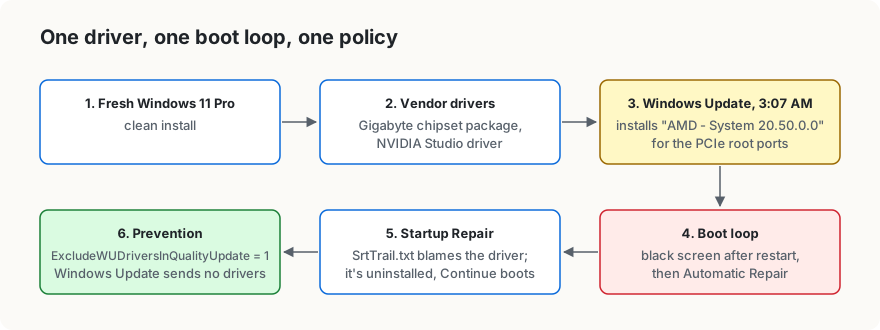
One correction to my own story: a Windows driver can’t stop the board from POSTing. Most likely the hang came right after POST while the screen was still dark, and my hard shutdowns are what kicked off Automatic Repair after a couple of tries.
There was a side quest. Earlier that night, after the first batch of updates (Realtek, Intel Bluetooth, Logitech), Windows had blue-screened with 0x4E PFN_LIST_CORRUPT. That one usually means a misbehaving driver, and less often RAM, and the logs alone couldn’t say which. The event log said a dump had been saved to C:\Windows\Minidump. I went to look. Empty. I ran a search of the other places Windows sometimes stashes a copy, from an admin window. Nothing. The dump was gone, and I dropped it: one crash in the middle of a big driver shuffle, and it hadn’t come back. If another 0x4E shows up, a memory test is next.
The real fix is boring: stop Windows Update from sending drivers at all. I install mine from Gigabyte and NVIDIA anyway. That’s one policy value, ExcludeWUDriversInQualityUpdate. I set it by hand on this PC, and it’s also in my tweaks script so a fresh install never repeats this. Security and feature updates still come through. Later that morning, Bench Tech, a PC-maintenance Grok Bot built to look after this machine, ran its first health check and confirmed the block was still on.
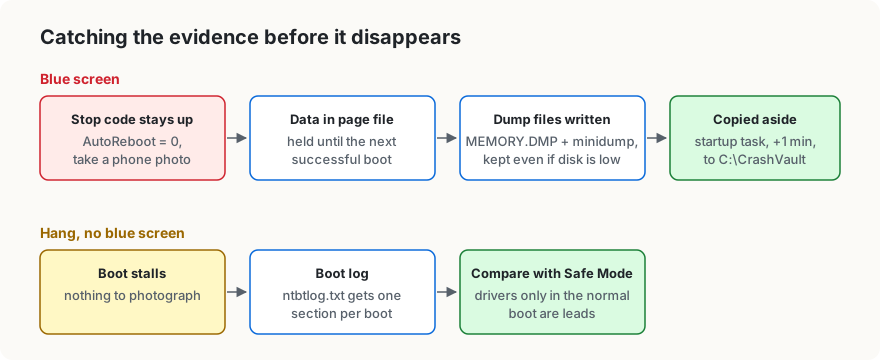
Losing that dump bugged me, though, so I asked the follow-up question: if this happens again, how do I catch the evidence before it disappears? It turns out that in a boot loop, Windows holds the crash data in the page file and only writes it out as a dump file on the next successful boot. So the setup now (confirmed with the script’s own check, which came back “All settings match.”):
- keeps the memory dump even when disk space is low, and saves an automatic memory dump (
MEMORY.DMP) alongside the small one - stays on the blue screen instead of instantly rebooting, so I can take a phone photo of the stop code
- turns on boot logging, so if a boot hangs with no blue screen,
ntbtlog.txtgives me something to compare against a good boot - runs a startup task a minute after every boot that copies any new dump into a folder cleanup tools don’t touch
Do it yourself
These are PowerShell commands. Anything that writes to HKLM, bcdedit, or registers a SYSTEM task needs an elevated PowerShell window.
1. Read the Startup Repair log.
Get-Content C:\Windows\System32\LogFiles\Srt\SrtTrail.txtLook for the root cause line. Mine named “a recent driver update installation.” If you’re still stuck in recovery, open Troubleshoot > Advanced options > Command Prompt and run type C:\Windows\System32\LogFiles\Srt\SrtTrail.txt instead (that’s cmd, not PowerShell). In recovery the Windows drive can have a different letter, so try D: if C: doesn’t have it.
2. Check what Windows Update installed, and when.
$s = New-Object -ComObject Microsoft.Update.Session; $h = $s.CreateUpdateSearcher()
$h.QueryHistory(0,25) | ForEach-Object { '{0:yyyy-MM-dd HH:mm}  result={1}  {2}' -f $_.Date.ToLocalTime(), $_.ResultCode, $_.Title }
Line the timestamps up against your failed boot. result=2 means it installed, 3 installed with errors, 4 failed.
3. Look for an earlier bugcheck.
Get-WinEvent -FilterHashtable @{LogName='System'; Id=1001; ProviderName='Microsoft-Windows-WER-SystemErrorReporting'} -MaxEvents 3 -EA SilentlyContinue | ForEach-Object { $_.TimeCreated; $_.Message }4. Stop Windows Update from installing drivers. This is the same as the Group Policy “Do not include drivers with Windows Updates.”
$wu = 'HKLM:\SOFTWARE\Policies\Microsoft\Windows\WindowsUpdate'
if (-not (Test-Path $wu)) { New-Item -Path $wu -Force | Out-Null }
New-ItemProperty -Path $wu -Name ExcludeWUDriversInQualityUpdate -Value 1 -PropertyType DWord -Force | Out-Null
5. Keep crash evidence.
$cc = 'HKLM:\SYSTEM\CurrentControlSet\Control\CrashControl'
New-ItemProperty $cc -Name CrashDumpEnabled -Value 7 -PropertyType DWord -Force | Out-Null      # automatic memory dump (MEMORY.DMP + minidump)
New-ItemProperty $cc -Name AlwaysKeepMemoryDump -Value 1 -PropertyType DWord -Force | Out-Null  # don't delete MEMORY.DMP when disk space is low
New-ItemProperty $cc -Name AutoReboot -Value 0 -PropertyType DWord -Force | Out-Null            # stay on the blue screen so you can read the stop code
bcdedit /set '{current}' bootlog yes          # writes C:\Windows\ntbtlog.txt at boot
Reading ntbtlog.txt takes a little care. Every boot adds its own section to the end (a version line, then a timestamp), so cut out just the failed boot’s section first. Its last few lines are leads, not a verdict. The log records what Windows decided to load (“Loaded driver” / “Did not load driver”), not which driver hung. A better test: drop the “Did not load driver” lines from the failed boot’s section and from a Safe Mode boot’s section, then compare the two. Drivers that only load in the normal boot are your suspects. If the failed boot has no section at all, or an empty one, the hang came before Windows could write the log to disk, and the log can’t help with that one.
6. Copy dumps aside at every startup. Create the folder first (New-Item C:\ProgramData\WinSetup -ItemType Directory -Force), then save this as C:\ProgramData\WinSetup\save-dumps.ps1:
$vault = 'C:\CrashVault'
New-Item $vault -ItemType Directory -Force | Out-Null
Get-ChildItem 'C:\Windows\Minidump\*.dmp' -ErrorAction SilentlyContinue | ForEach-Object {
  $dest = Join-Path $vault $_.Name
  if (-not (Test-Path $dest)) { Copy-Item $_.FullName $dest }
}
$mem = Get-Item 'C:\Windows\MEMORY.DMP' -ErrorAction SilentlyContinue
if ($mem) {
  $dest = Join-Path $vault ('MEMORY-{0:yyyyMMdd-HHmmss}.DMP' -f $mem.LastWriteTime)
  if (-not (Test-Path $dest)) { Copy-Item $mem.FullName $dest }
}
Then register it to run as SYSTEM one minute after boot:
$act  = New-ScheduledTaskAction -Execute 'powershell.exe' -Argument '-NoProfile -ExecutionPolicy Bypass -File "C:\ProgramData\WinSetup\save-dumps.ps1"'
$trig = New-ScheduledTaskTrigger -AtStartup; $trig.Delay = 'PT1M'
Register-ScheduledTask -TaskName 'SaveCrashDumps' -Action $act -Trigger $trig -User 'SYSTEM' -RunLevel Highest -Force | Out-Null
Caveats
- With the driver policy on, you own driver updates. Get chipset and GPU drivers from the vendor yourself.
- Dumps only land after a successful boot. The startup task catches them then, before cleanup can.
MEMORY.DMPcan be several GB; the script names each copy by timestamp so it isn’t re-copied every boot.ntbtlog.txtkeeps growing while boot logging is on.- With AutoReboot off, the PC sits on the blue screen until you restart it. Photograph the stop code and any driver name first.